> ## Documentation Index
> Fetch the complete documentation index at: https://docs.minicor.com/llms.txt
> Use this file to discover all available pages before exploring further.
# Executions and replays
> Every run of a job is an execution, and every execution is recorded.
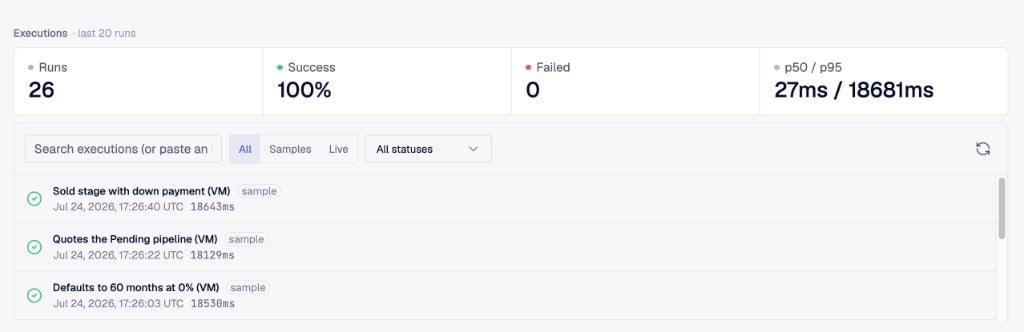
Every time a job runs, Minicor creates an execution: the input, the outcome of each step, the response, and a replay of the desktop while the automation ran. The job page lists them all, filterable by **All**, **Samples**, and **Live**.
 ## Sample runs and live runs
Sample runs come from teaching: the builder running samples during a build, or you clicking **Run this sample** or **Run all samples** on the job. Live runs come from real traffic at the trigger URL. They are the same machinery; the filter exists so a burst of sample runs does not bury your production history.
Running all samples produces a **run report**: every scenario, every sample, pass or fail, in one place. It is the fastest way to answer "does this job still work?" after anything changes.
## Replays
The replay is the recording of the desktop during the run. Automation failures are usually visual: a dialog that appeared, a field that did not populate, a click that landed on the wrong row. Watching the replay is almost always the fastest way to see what actually happened, faster than reading logs.
A replay of a live run: the job opens the customer list in a legacy dealership system, fills the new customer form from the request payload, and saves. The record count in the corner ticks up when the write lands.
When a run fails:
1. Open the execution from the job page.
2. Check which step failed and what its output was.
3. Watch the replay around that step.
4. Teach the job the failing case as a new sample, or [drill down](/teaching/drilling-down) and fix the step yourself.
## Reading a replay
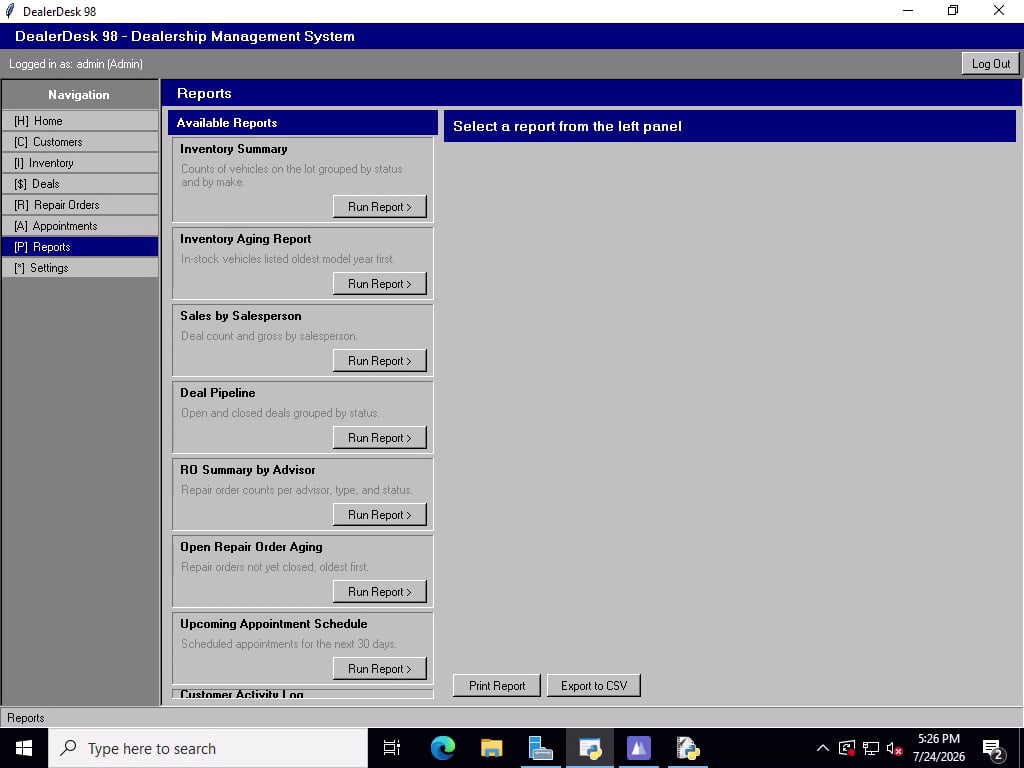
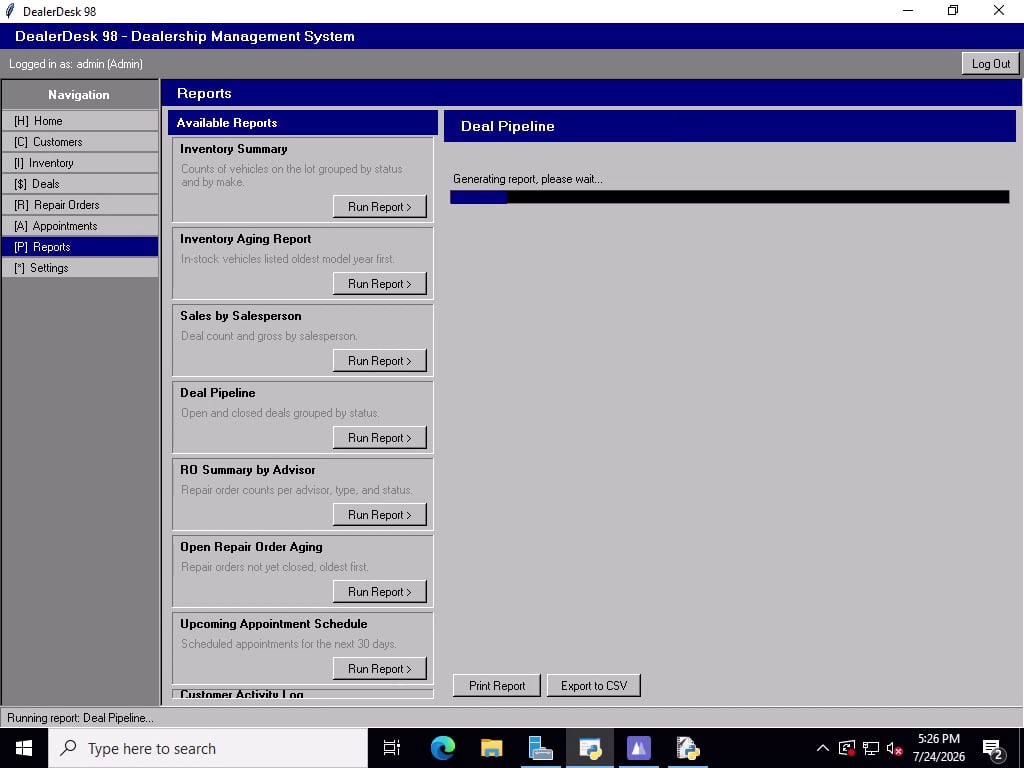
Here is a live run that pulls a report out of a dealership management system and returns the rows as JSON. The whole run takes seven seconds. The banner under the video names the step that was executing at that moment, taken from the run's step timings.
The run has three steps. Watch it once, then walk through the key moments:
## Sample runs and live runs
Sample runs come from teaching: the builder running samples during a build, or you clicking **Run this sample** or **Run all samples** on the job. Live runs come from real traffic at the trigger URL. They are the same machinery; the filter exists so a burst of sample runs does not bury your production history.
Running all samples produces a **run report**: every scenario, every sample, pass or fail, in one place. It is the fastest way to answer "does this job still work?" after anything changes.
## Replays
The replay is the recording of the desktop during the run. Automation failures are usually visual: a dialog that appeared, a field that did not populate, a click that landed on the wrong row. Watching the replay is almost always the fastest way to see what actually happened, faster than reading logs.
A replay of a live run: the job opens the customer list in a legacy dealership system, fills the new customer form from the request payload, and saves. The record count in the corner ticks up when the write lands.
When a run fails:
1. Open the execution from the job page.
2. Check which step failed and what its output was.
3. Watch the replay around that step.
4. Teach the job the failing case as a new sample, or [drill down](/teaching/drilling-down) and fix the step yourself.
## Reading a replay
Here is a live run that pulls a report out of a dealership management system and returns the rows as JSON. The whole run takes seven seconds. The banner under the video names the step that was executing at that moment, taken from the run's step timings.
The run has three steps. Watch it once, then walk through the key moments:
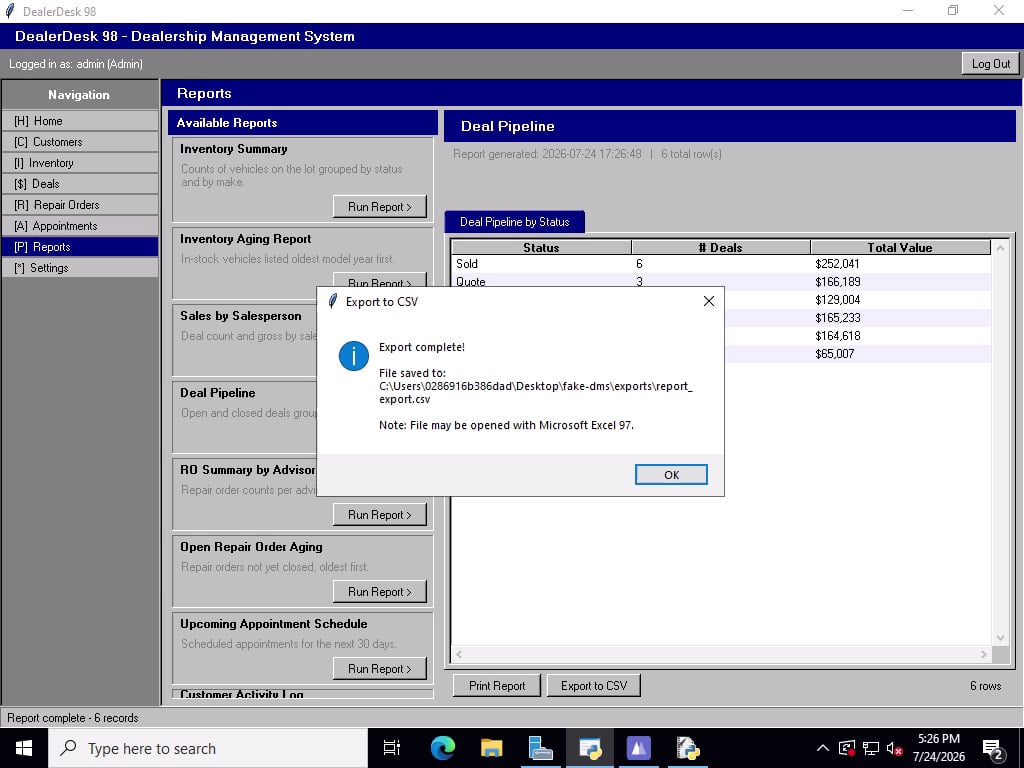
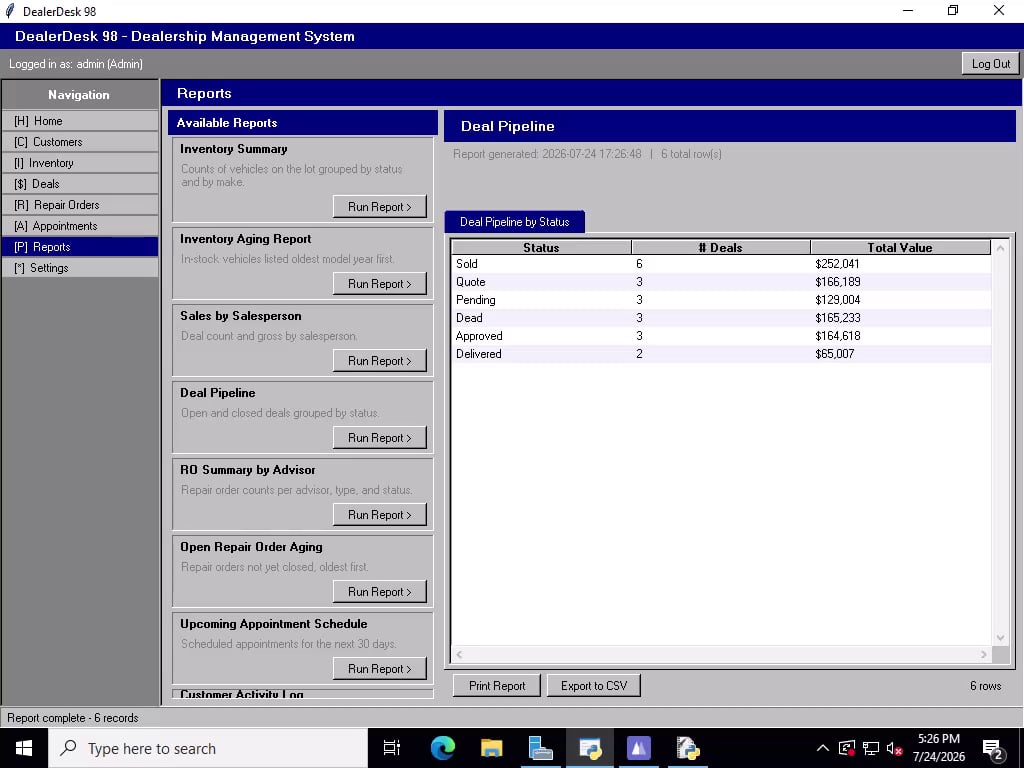 This is the shape of most debugging on Minicor: the response tells you what came back, the step list tells you where time went, and the replay shows you the screen at the moment anything surprising happened.
> Replays double as your audit trail. For every write into a system of record, there is a replay of it being made.
This is the shape of most debugging on Minicor: the response tells you what came back, the step list tells you where time went, and the replay shows you the screen at the moment anything surprising happened.
> Replays double as your audit trail. For every write into a system of record, there is a replay of it being made.